I merged two PDFs and counted the network requests: zero
Most "free PDF merge" sites work the same way. You pick your files, they go up to someone's server, the server stitches them together, and you download the result. For a menu or a flyer that is fine. For a contract, a payslip or a scanned ID it is a lot of trust to hand to a site you found thirty seconds ago.
Our Merge PDF tool does the work inside your browser instead. Saying that is easy, so I tested it the boring way: merge two files and count what the page sends over the network while it does it.
The test
I made two tiny one-page PDFs, invoice-march.pdf and invoice-april.pdf (590 bytes each), opened the tool, started recording every request the tab made, and then:
- Selected both files.
- Clicked Merge 2 PDFs.
- Waited for the download link to appear.
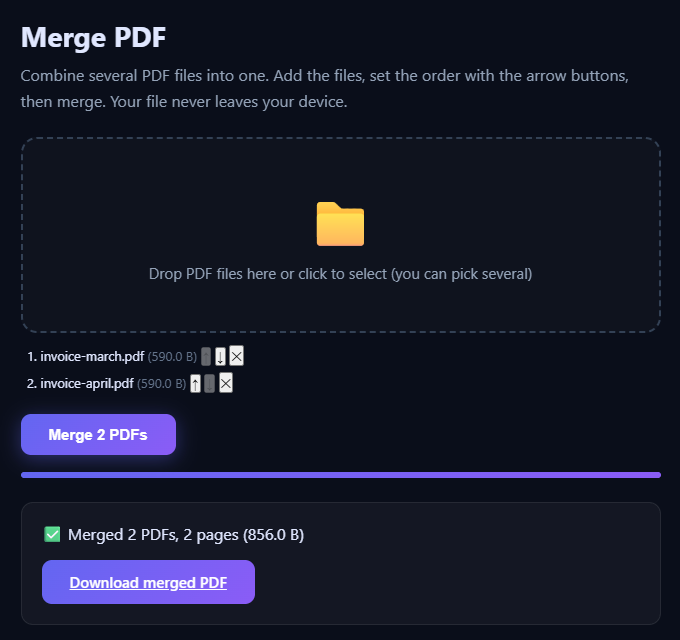
Requests recorded between selecting the files and getting the merged PDF: 0. Not "a few analytics pings", not "one small upload". Nothing left the tab. The merged file is built in memory and handed to you as a local blob: link.
Why it can't quietly upload
A promise in the page text is one thing. The browser enforcing it is better. Every tool page is served with a Content-Security-Policy header, and the part that matters here is:
connect-src 'none'; form-action 'none'; frame-src 'none'In plain words: the page is not allowed to open any network connection from its scripts, submit a form anywhere, or load a hidden frame. If a script on that page tried to send your file somewhere, the browser itself would block it and print an error in the console. That rule is also why tool pages carry no ads or third-party scripts at all.
Check it yourself in under a minute
- Open Merge PDF.
- Press F12 (or Cmd+Option+I on a Mac) and switch to the Network tab.
- Click the clear button so the list is empty.
- Add your PDFs and merge them.
The list should stay empty. You can go one step further: once the page has loaded, turn off Wi-Fi and merge again. It still works, because nothing it needs is fetched later.
The same check works on every browser tool on the site, for example Split PDF, Compress PDF or PDF Sign.
What it can't do
- Password-protected PDFs can't be opened. Remove the password first with the app that created it.
- Form fields, bookmarks and existing digital signatures may not survive the merge.
- Very large files are limited by your device's memory. A phone will be slower than a laptop.
When you need it in a script
The same job exists as an API endpoint, /api/pdf-merge, and as a tool in our MCP server. Be clear about the difference: the API runs on our server, so your files do travel there. They are processed in memory and not stored or logged, but if "never leaves my device" is the requirement, use the browser tool.
curl -X POST https://toolsthatdontupload.com/api/pdf-merge \
  -F "files=@a.pdf" -F "files=@b.pdf" -o merged.pdf