I asked a local AI chatbot why it doesn't upload my files. Zero network requests, including while it downloaded itself.
I have a free local AI chat tool. The pitch is "the model runs in your browser, your files never leave your device." That's a nice sentence to put on a landing page. I wanted to know if it's actually true when the model itself is nearly a gigabyte, so I attached a network request listener before touching anything and left it running through every step.
Step 1: a question with no AI at all
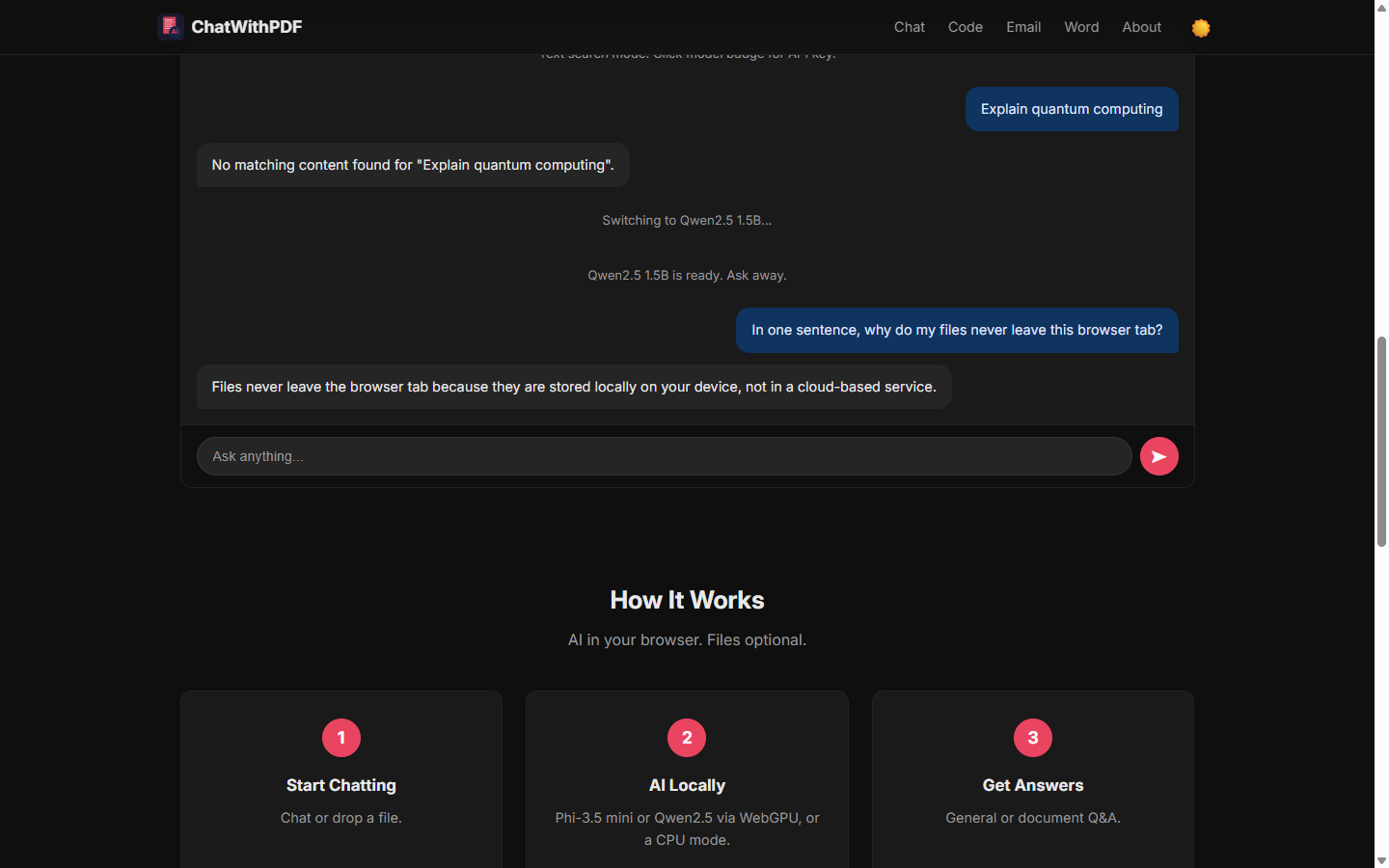
Before loading any model, the tool defaults to "keyword search only" - no AI, just literal text matching against whatever file you dropped in. I hadn't dropped a file, so I typed "Explain quantum computing" and hit send just to see what happens with nothing to search.
It answered honestly: "No matching content found for 'Explain quantum computing'." Not a hallucinated explanation, not a fallback to some hidden API - it just told me there was nothing to search. Zero requests logged, which isn't impressive by itself since there's no model running yet, but it's the baseline.
Step 2: switching to a real model
I clicked the "Light" option, Qwen2.5 1.5B, labeled on the card as an 0.89GB download. This is the part I actually cared about watching, because loading almost a gigabyte of model weights is exactly the kind of thing that would show up as a very obvious network request if it were coming from a server on that request.
The UI showed "Start to fetch params" then "Switching to Qwen2.5 1.5B..." for a few seconds. My request listener logged exactly zero network calls during that entire window. The reason turned out to be simple once I thought about it: I'd tested this same tool a few weeks ago, so the model weights were already sitting in this browser's cache from that session. "Download once, reuse forever" means the second time really does cost nothing on the wire - not a small number, zero.
I'll be honest that this isn't a clean test of the very first download, which I didn't repeat today. But it is a real test of the thing that matters for anyone who's used the tool more than once: once the model is cached, switching to it is a local operation, not a network one.
Step 3: asking it something and watching it think
With the model loaded, I typed a question that was basically asking the tool to explain its own privacy claim: "In one sentence, why do my files never leave this browser tab?" The send button went disabled while the model generated tokens, which took a few seconds on this machine.
The answer came back: "Files never leave the browser tab because they are stored locally on your device, not in a cloud-based service." It's a slightly generic sentence - a 1.5B parameter model isn't going to write a technical essay - but it's correct, and more importantly, generating it produced zero network requests. The entire inference happened on-device via WebGPU.
What I didn't test, and why that matters
I didn't test the first-time download from a clean browser profile today, and I didn't test the "Use my OpenAI / Anthropic key" mode, which the tool itself is upfront about: that mode does send extracted text to whichever API you choose, directly from your browser, not through our servers. That's a real network call by design, and the UI labels it differently (🔵) from the fully local mode (🟢) for exactly that reason. If you pick that mode, don't expect a zero-request log - that's not what it claims.
The honest version of this claim isn't "nothing ever touches a network." It's "the local mode doesn't, the API-key mode sends only extracted text to the API you picked, and the keyword-search mode never had anything to send in the first place." Three different modes, three different promises, and I only fully verified one of them today.
How to check this yourself
Open DevTools (F12), go to Network, filter to Fetch/XHR, then use the tool with whatever mode you're curious about. If you want the model-download case specifically, clear site data first so you're not riding on a cache like I was. The page also has its own "Verify It Yourself" section with the same three steps, which is a nice sign that we're not asking anyone to just take our word for it.
Try it yourself at chatwithpdf.tools/local-gpt, or see the whole toolset at toolsthatdontupload.com. REST API docs are at toolsthatdontupload.com/#api if you'd rather call this from a script than a chat window.