I selected 15 seconds in an MP3 trimmer and saved the full 60 instead
Update, November 3, 2026 (later that night): I fixed the tool after writing this. When you select a range, the button now reads "Save selection" and it saves only that range. I re-ran the same test (60-second file, 10 to 25 seconds selected) and got a 15-second file. The rest of this post is the record from before the fix, kept as it was.
I made a clean 60-second test tone, picked exactly 10.00 to 25.00 seconds with the numeric time inputs on our MP3 trimmer, hit Save, and got the full 60 seconds back. Not approximately the full file. Exactly the full file, just re-encoded. I checked the duration with code, not by eyeballing a progress bar, so I know this wasn't me misreading a UI.
Building a test file I could trust
I didn't want to test on a real song, because I wanted an unambiguous way to know if the trim worked. So I generated a 60-second mono WAV myself: a 440Hz tone for the first 30 seconds, an 880Hz tone for the second 30. No copyright questions, no "was that silence intentional" ambiguity. I uploaded it to freesoundtools.com's MP3 trim tool and watched the waveform render.
The tool has a feature I didn't expect from a browser-only audio editor: you can type the start and end times directly, down to 0.01 seconds, instead of dragging a selection handle and hoping. I typed 00:10.00 into the start field and 00:25.00 into the end field. The orange selection on the waveform snapped to exactly that range, and a text label under the waveform read "Selected 00:10.00 - 00:25.00." So far, everything was exactly as precise as advertised.
Save gave me the whole file back
With the selection showing clearly on screen, I clicked Save (format MP3, 192kbps, the defaults). The result panel showed a player with "0:00 / 1:00" next to it, and a size change of 5.0MB down to 1.4MB. I assumed I'd misclicked, reloaded the page, uploaded the same file again, typed the same 10.00-25.00 range, and saved again without touching anything else. Same result: 0:00 / 1:00.
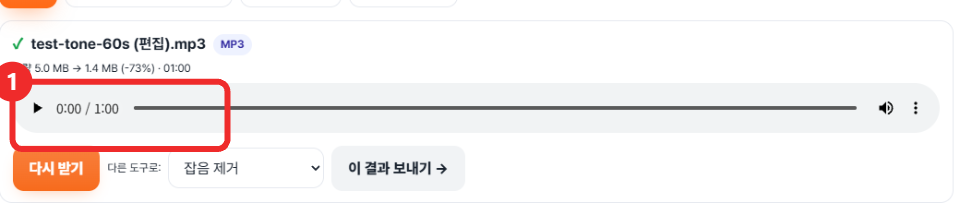
The file size did shrink, because a 60-second WAV re-encoded as MP3 is smaller than the WAV, so at a glance the output looked plausible. It was only the duration number next to the player that gave it away. I didn't just trust the on-screen label either: I loaded the downloaded MP3 back into an audio element in the browser and read its .duration property. 60.06 seconds. The selection I'd made so carefully had done nothing to the saved file.
The missing step: selection and "apply" are two different buttons
Going back to the tool's own instructions, there's a separate button labeled "Keep selection only," sitting next to Save, not inside it. Selecting a range on the waveform (whether by dragging or by typing exact numbers) only marks the range. It doesn't commit anything to the file until you press that button. Save, it turns out, exports whatever the current full waveform is at the moment you click it, selection or no selection.
I repeated the exact same steps, typed 10.00 to 25.00 again, but this time clicked "Keep selection only" before Save. The length indicator above the waveform changed from "01:00.00" to "00:15.00" the instant I clicked it, before I'd even touched Save. Then I saved, and the result panel showed "0:00 / 0:15" with the file size down to 353KB (5.0MB to 353KB, a 93% drop that actually corresponds to 15 seconds of audio instead of 60).
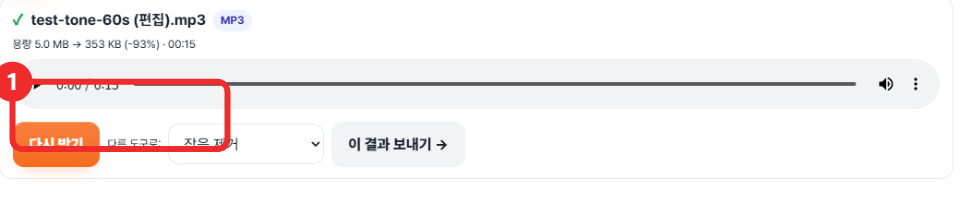
How close was the 15.00 seconds I asked for?
Since I'd gone to the trouble of generating a test tone and reading duration values programmatically, I checked the exact number on the correctly trimmed file too: 15.046531 seconds, against a requested 15.00. That's roughly one MP3 frame's worth of rounding (MP3 frames are about 26 milliseconds each), not a bug, just how block-based encoding works. For a ringtone or a highlight clip, that's not something you'd ever notice by ear.
I also kept a network listener running from the moment I picked the file to the moment I downloaded the trimmed MP3, across both the broken attempt and the fixed one. Zero requests, in both cases, across three separate save attempts. The tool's own FAQ claims the original file is never stored on a server, and that matched what I measured, not just what I was told.
Why this is worth writing down
Nothing about this is a dramatic failure. The waveform selection genuinely was precise to the hundredth of a second, which is more exact than most "drag a handle" trimmers I've used. But if you only look at the waveform (where the selection is clearly highlighted in orange) and not at the duration number before you hit Save, it's easy to walk away with a full, unedited file and not notice until you play it back later. The fix, once you know it, is a single extra click. Before that, it cost me two full re-downloads of a 60-second file I didn't need.
If you're building or reviewing a similar trim-then-export flow, the thing I'd check for is whether "select" and "apply" are the same action or two different ones, and if they're two different ones, whether the UI tells you clearly enough before export. In this case the length number above the waveform was the tell, I just wasn't looking at it the first two times.
Related tools on our side: the full tool list, MP3 merge if you're cutting and re-joining clips, and the API docs if you want to run audio edits outside a browser tab.