Two ways to check a free tool isn't sending your data anywhere
"This tool doesn't upload your files" is an easy sentence to write and a harder one to prove. Rather than ask you to trust the copy on our own site, here are the two checks I actually ran this week: watching the network tab on one tool while using it, and comparing the browser-enforced header across four different tool pages.
Check 1: watch the network tab while you use it
I opened the Unit Converter and attached a request listener before touching anything. Then I switched to the Data category and typed values back and forth between kilobytes and bytes, switching which side was in kb and which was in bytes, clicking through the dropdowns a handful of times.
One number stood out: converting 1 kb gave 1,024 bytes, not 1,000. That's the old binary convention (2^10) that a lot of computing tools still default to, even though the SI prefix "kilo" technically means 1,000. It's a detail worth checking before you trust a storage-size conversion from any tool, including this one.
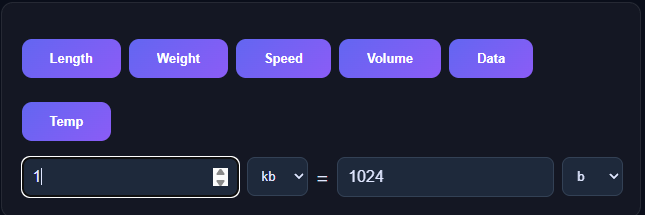
Across every one of those input changes, category switches, and dropdown selections, the request listener logged zero network calls. Not "zero after the page loaded" with some exception for data entry - zero, period, from the moment the listener was attached.
Check 2: the header that's enforced by the browser, not by us
A network log only proves what happened during the time I was watching. A more durable check is the Content-Security-Policy header the server sends, because the browser itself enforces it on every request, not just the ones I happen to be testing. I pulled the header from four different tool pages to see if it's consistent or if some pages got missed:
curl -sI https://toolsthatdontupload.com/tools/unit-converter/
curl -sI https://toolsthatdontupload.com/tools/percentage-calc/
curl -sI https://toolsthatdontupload.com/tools/age-calculator/
curl -sI https://toolsthatdontupload.com/tools/pdf-sign/
All four came back with the same directive: connect-src 'none'. That tells the browser to block any fetch, XHR, WebSocket, or beacon call a script on that page might attempt, no matter what the JavaScript tries to do. form-action 'none' closes the plain-HTML-form loophole too. If a future update to any of these pages ever added a stray analytics call or an accidental upload, the browser would refuse the request and log a CSP violation, visible in DevTools to anyone who checks, not something we could quietly suppress.
Why two checks instead of one
The network tab tells you what happened during the specific actions you took. The CSP header tells you what's structurally possible no matter what you do next. Neither one on its own is a complete guarantee, but having both agree is a lot more convincing than a sentence of marketing copy, and both checks took about two minutes combined.
If you want to run this yourself on any tool on this site: open DevTools (F12), go to Network, use the tool for a minute, then run curl -sI <page-url> from a terminal and look for connect-src in the content-security-policy line. If a site doesn't send that header at all, the header check won't tell you anything either way, and the network tab becomes the only check that matters.