I compressed a 1.4MB photo and watched the Network tab: zero requests
"Your file never leaves your device" is printed right under the title of our Compress Image tool. Anyone can write that sentence. So instead of trusting it, I opened DevTools, recorded every request the tab made, and ran a real photo through it.
The test
I generated a synthetic 3000x2000 JPEG (gradient background, a few thousand colored dots to keep the file size realistic, some text burned in) and saved it at 1.4MB, about the size of a decent phone photo. Then, with a network listener attached before the page even finished loading:
- Opened the Compress Image tool.
- Dropped the 1.4MB file in.
- Waited for the result.
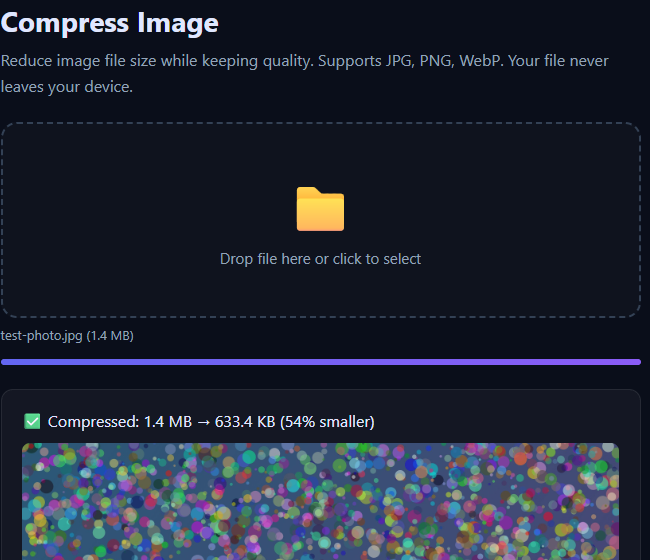
Result: 1.4 MB → 633.4 KB, a 54% reduction, done in under two seconds. Requests captured by the listener between picking the file and seeing that result: zero. No upload, no background ping, nothing.
Why a rogue script couldn't sneak a request through
I didn't just trust my own listener. I also pulled the response headers for the page directly:
content-security-policy: default-src 'self'; connect-src 'none'; frame-src 'none'; object-src 'none'; form-action 'none'; ...connect-src 'none' means the browser itself refuses any fetch, XHR, WebSocket or beacon call from that page's scripts, no matter what the JavaScript tries to do. form-action 'none' blocks a plain HTML form submit too. This isn't a policy on paper, it's an instruction the browser enforces at the network layer. If a future build of the tool ever tried to add an upload, the request would be blocked client-side and show up as a CSP violation in the console, not as a silent success.
The page explains how it actually works, and it matches what you'd expect from a client-side tool: it decodes the image with the browser's own decoder, draws it to a canvas, and re-encodes it there. The "upload" never happens because there's no code path that calls out anywhere.
Check it yourself in under a minute
- Open Compress Image.
- Press F12 and switch to the Network tab.
- Clear the list.
- Drop in any photo.
The list should stay empty through the whole compress. For an extra check, turn off Wi-Fi after the page loads and compress again; it keeps working, because nothing it needs is fetched after the initial page load.
What compression does and doesn't do
- It re-encodes the image, so EXIF data (camera model, GPS location) is stripped as a side effect, not kept.
- PNG is lossless, so lowering quality barely changes PNG file size. JPEG and WebP shrink the most.
- If the photo is huge in pixel dimensions, resizing first usually saves more bytes than compressing alone, since a 4000px photo shown at 1200px wastes most of its data either way. There's a separate Resize Image tool for that.
- Animated GIFs become a single still frame.
When you need it from code
The same operation also exists as an API for cases where you're processing images on a server anyway: /api/image-compress. Worth being direct about the trade-off: the API runs on our infrastructure, so the file does travel there for that one request. It's processed in memory and not logged or stored, but if the whole point is that the file stays on one device, use the browser tool above, not the API.
curl -X POST https://toolsthatdontupload.com/api/image-compress \
  -F "file=@photo.jpg" -F "quality=80" -o compressed.jpg
Related
If you're here from the PDF merge network test, this is the same check applied to a different tool, and the result holds for the same reason: a CSP header, not a promise. The Resize Image and Convert Image tools on the site are built the same way and carry the same header.